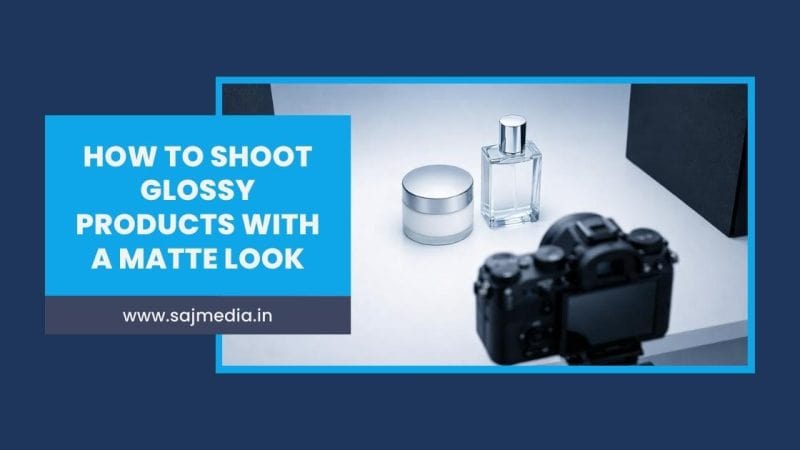
To shoot glossy products surfaces are the biggest challenge in product photography. A bottle of perfume, a premium skincare jar, a smartphone — they all look sharp in real life. But point a mirrorless camera at them under direct light and you get blown-out reflections, distracting glare, and a surface that looks nothing like the product.
The good news: you do not need an expensive studio to fix this. With the right lighting setup, a circular polarizing filter, and a few budget tools, you can produce clean, professional product images that look matte and polished.
This guide walks through a proven 10-step workflow for shoot glossy products with a controlled matte look using any mirrorless camera — Sony, Fujifilm, Canon, or Nikon.
Who Needs This Technique
- E-commerce sellers listing on Amazon, Noon, or regional marketplaces
- Product photographers offering commercial shoots to brands
- Bloggers and content creators shoot glossy products for reviews
- Small brands in cosmetics, electronics, bottled goods, or accessories
- Social media creators building a professional visual portfolio
Equipment Checklist for Shoot Glossy Products
| Equipment | Notes |
| Mirrorless camera | Sony ZV-E10, Sony A7 IV, Canon R50, Fujifilm X-S20 all work well |
| Tripod | Essential — prevents framing shifts between test shots |
| Softbox or LED panel | Approx. Rs.2,500-Rs.8,000 / $30-$100 for entry-level |
| Diffuser sheet / white cloth | Budget option: white shower curtain or baking paper |
| Black foam boards x2 | Available at any stationery shop — Rs.50 each / $1 each |
| Circular polarizing filter (CPL) | Match to your lens diameter — Rs.1,200-Rs.3,500 / $15-$45 |
| Matte background sheet | Matte paper, foam board, or fabric — avoid gloss acrylic |
| Microfiber cloth | Clean the product before every single shoot |
Camera Settings
Use manual mode throughout for consistent exposure across every frame.
- ISO: 100 or 200 — lowest native ISO on your camera
- Aperture: f/8 to f/11 for sharp edge-to-edge product detail
- Shutter speed: match to light output — start at 1/125s and adjust
- White balance: set manually to match your light source
- Format: always shoot glossy products in RAW for full highlight control in post
Sony tip: enable Focus Peaking to confirm sharp product edges through the viewfinder.
Step-by-Step Workflow
- Step 1 — Clean the Product
Dust, fingerprints, and smudges create micro-highlights on glossy surfaces. They look invisible to the naked eye but appear immediately on a camera sensor. Wipe with a clean microfiber cloth before every setup. Inspect edges under light and repeat if needed. This single step saves significant editing time.
- Step 2 — Diffuse the Light Source
Direct light from a bare LED or flash creates hard reflections. The solution is a large, soft, diffused light source. Position your softbox directly above the product, add a diffuser sheet between light and product, and increase the distance between light and subject. A larger soft light spreads evenly across the surface with no harsh hotspots.
- Step 3 — Use a Light Tent for Full Reflection Control
For highly reflective products — perfume bottles, chrome electronics, glass jars — a light tent gives the most consistent results. Wrap white diffusion cloth around the product on three sides, leave an opening for your lens, and place the light source outside the cloth. This eliminates environmental reflections completely.
- Step 4 — Place Black Cards for Edge Control
Glossy surfaces mirror their surroundings. Even a muted studio wall creates unwanted colour casts on reflective products. Place black foam boards on the left and right sides of the product. Add a third board behind the camera if reflections persist. Black cards absorb ambient light and create clean, controlled edges.
- Step 5 — Attach a Circular Polarizing Filter
A CPL filter is the single most effective tool for reducing glare. It blocks reflected light waves that vibrate in a single direction. Attach the CPL to your lens, point at the product, and slowly rotate the front element. Watch reflections disappear in real time. Particularly effective on cosmetic packaging, bottles, and electronics.
Note: a CPL reduces light by approximately 1.5 to 2 stops. Compensate by increasing light output or opening your aperture slightly. - Step 6 — Choose a Matte Background
Reflective or semi-gloss backgrounds pick up stray light and create a glow around the product. Use matte paper, foam board, or fabric. Avoid glossy acrylic, glass, or polished surfaces. A clean grey, white, or dark matte background keeps focus entirely on the product.
- Step 7 — Adjust the Shooting Angle
Small angle changes produce large reflection differences. The angle of incidence equals the angle of reflection. Start at eye level, lower the camera a few degrees, and rotate the product slightly. Often a 5-degree change eliminates a reflection that was dominating the frame.
- Step 8 — Use Flagging to Target Remaining Reflections
When a specific surface area still shows reflections after all other steps, use flagging. A flag is any piece of dark material positioned between your light source and the reflective area. Cut black cardboard into strips and position them to block light from problem areas. Flags give precise control without adjusting your main light setup.
- Step 9 — Shoot Glossy Products in Multiple Frames
Even with full reflection control, minor differences appear across frames. Shoot 20 to 30 frames per product setup. Multiple frames give you the best candidates for selection and provide backup if a reflection appears in editing that was invisible during the shoot.
- Step 10 — Post Processing for a Clean Matte Finish
Editing refines the result — it does not create it. Start with a well-lit base image. Recommended workflow in Adobe Lightroom or Capture One:
1. Reduce Highlights to recover surface detail
2. Increase Texture slightly to emphasize product surface
3. Reduce Clarity slightly if residual glare remains
4. Use Healing Brush in Photoshop to remove any remaining spot reflections
Do not over-smooth. Product surface texture must remain visible. Over-edited images look artificial and reduce buyer confidence in e-commerce listings.
Example Home Studio Setup
This setup costs under Rs.15,000 / $180 to build from scratch and produces catalog-quality results:
- Table placed against a plain wall
- Softbox positioned directly above the product, slightly forward
- Diffuser sheet between softbox and product
- White foam board in front as fill light reflector
- Black boards on both sides for edge control
- Camera on tripod at product level
- CPL filter attached and rotated before each setup
Common Mistakes
| Mistake | Result |
| Direct bare light on product | Strong uncontrollable surface reflections |
| Glossy or reflective background | Background reflects light back onto the product |
| Skipping the CPL filter | Glare remains on curved and flat glossy surfaces |
| Shooting handheld | Inconsistent framing — shifts between test shots |
| Over-editing highlights | Artificial plastic appearance — loses product texture |
| Not cleaning the product | Dust and fingerprints create highlight spots |
Pre-Shoot Checklist
- Product cleaned with microfiber cloth
- Light diffused through softbox and diffuser sheet
- CPL filter attached and rotated to minimum reflection
- Black cards placed on both sides
- Matte background in place
- Camera on tripod in manual mode
- RAW format enabled, white balance set manually
FAQ – How to Shoot Glossy Products
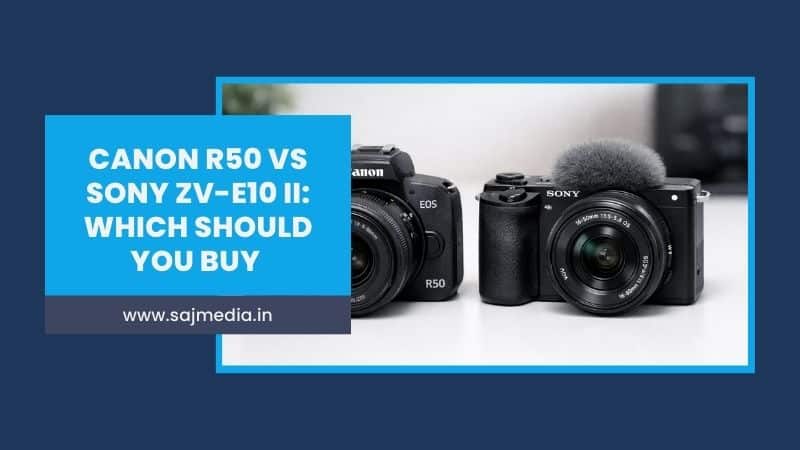
No. An entry-level body like the Sony ZV-E10 (approx. Rs.55,000 / $660) or Canon R50 produces excellent product images with proper lighting. The light setup matters far more than the camera body.
Match the filter diameter to your lens thread size. Most kit lenses use 49mm or 55mm. A quality CPL from Hoya or K&F Concept costs approx. Rs.1,200-Rs.3,500 / $15-$45.
Yes for basic shots. However, a mirrorless camera gives you RAW files, full manual control, and the ability to use CPL filters — all of which produce significantly better results for commercial product photography.
Use the Healing Brush or Clone Stamp for small spots. For larger reflections, use Frequency Separation to edit surface texture independently from the color layer.



Leave a Comment
Your email address will not be published. Required fields are marked *